How to Use the Prompt Editor
1. Open the App
Navigate to https://prompt.jctec.me/. You’ll land straight in Editing Mode, ready to begin.
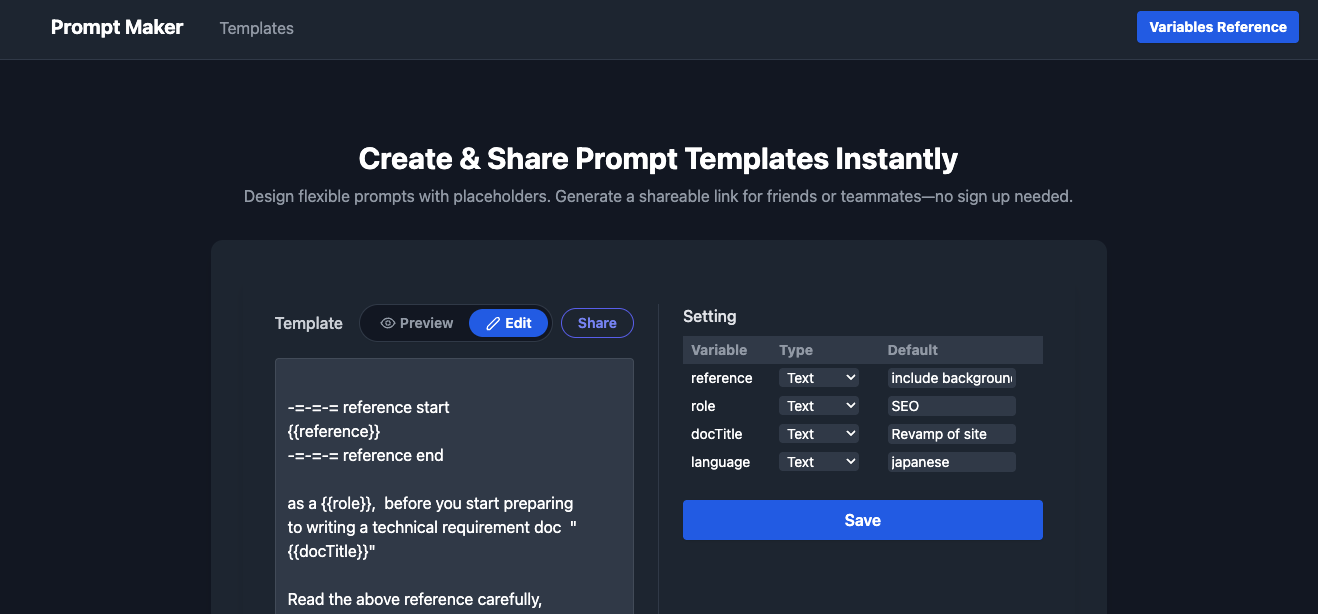
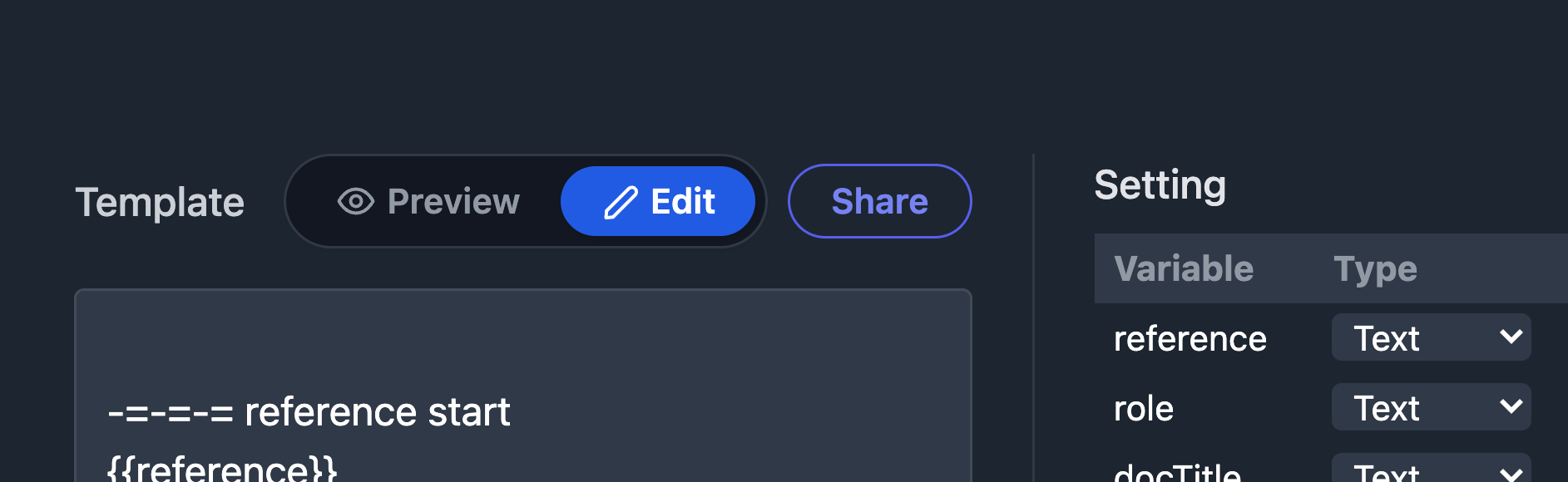
2. Familiarize Yourself with the UI
- Editor Pane: A large text area where you type your template.
- Toolbar: Buttons to switch between Editing/Preview modes, save, and share.
- Status Indicator: Shows when your work is autosaved locally.
3. Building Your First Template
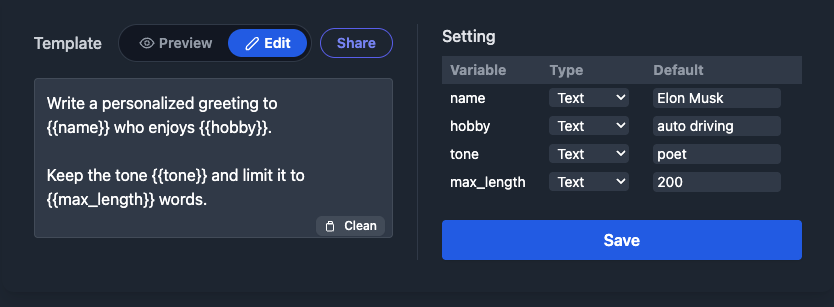
In Editing Mode, create your prompt template and designate variables:
Write a personalized greeting to {{name}} who enjoys {{hobby}}.
Keep the tone {{tone}} and limit it to {{max_length}} words.
Keep the tone {{tone}} and limit it to {{max_length}} words.
Variables are wrapped in double curly braces: {{variable_name}}.
You can name them using letters, numbers, and underscores.
4. Saving Your Work
- Click the Save (💾) icon in the toolbar.
- Your template is stored in local storage—no server involved.
- Reload or close the tab; when you return, your latest draft reappears instantly.
- Tip: Clear your browser data if you ever want to reset all saved templates.
5. Preview Mode
- Once your template is ready, click the Preview (👁️) icon.
- You’ll see input fields for each variable:
| Variable | Default | Input Field |
|---|---|---|
| name | Elon | [ ] |
| hobby | Auto Driving | [ ] |
| tone | Casual | [ ] |
| max_length | 200 | [ ] |
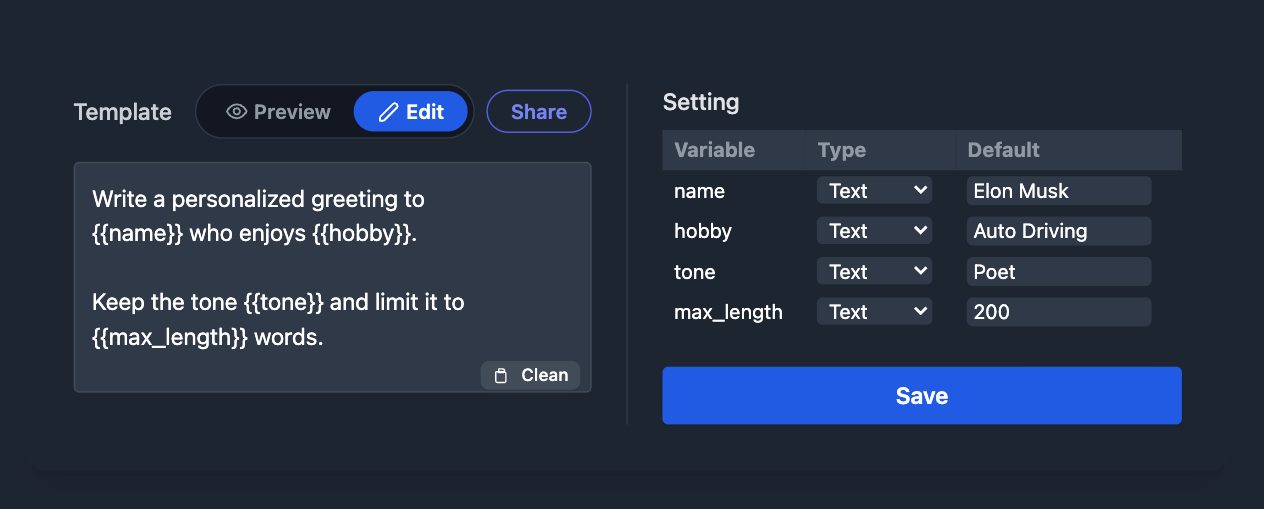
Fill in values, and the rendered prompt appears below:
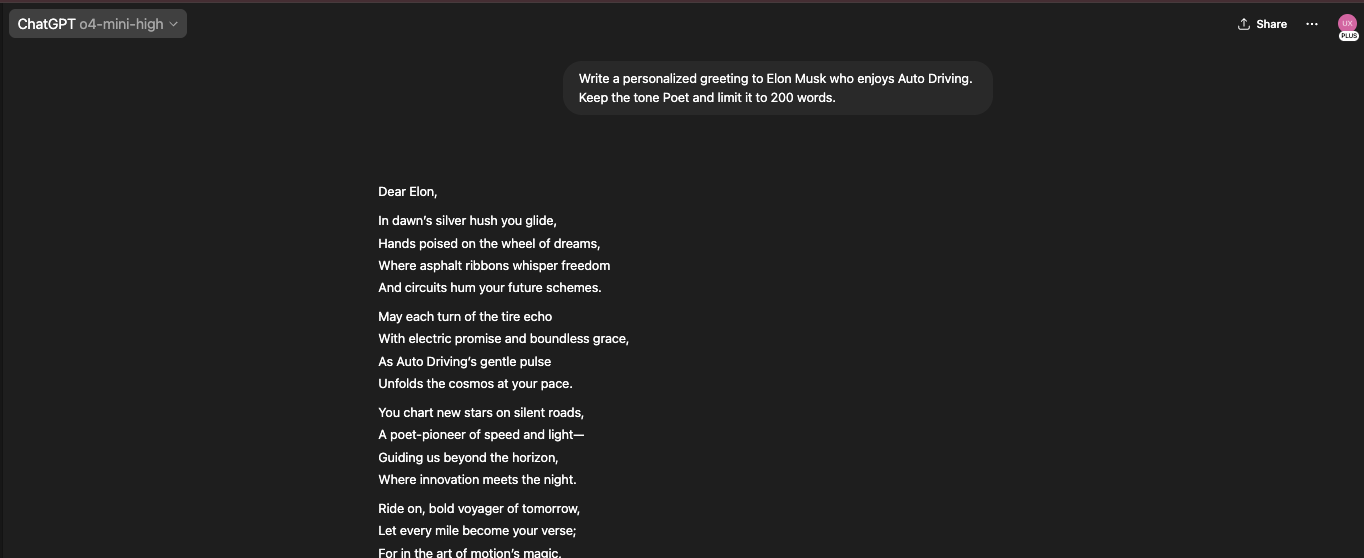
Write a personalized greeting to Elon Musk who enjoys Auto Driving.
Keep the tone Poet and limit it to 200 words.
You can now copy the rendered text and use it in ChatGPT or other apps.
6. Sharing & Bookmarking
Generating a Shareable Link
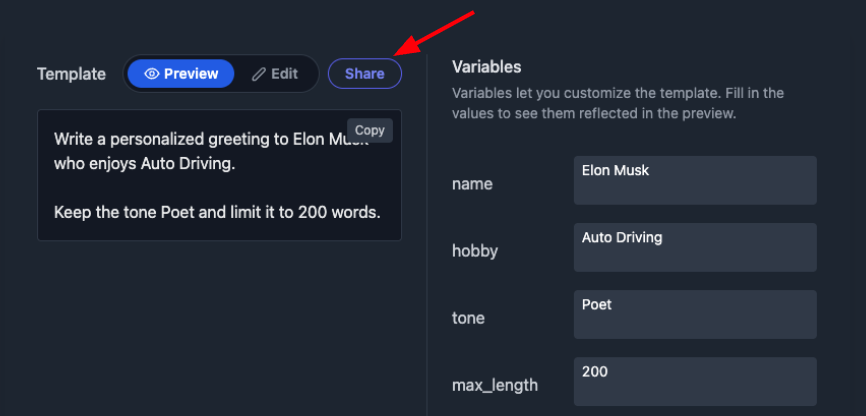
- While in Preview Mode, click Share (🔗).
- A URL is generated containing your template structure and any variable defaults.
- Anyone opening that link will land directly in Preview Mode with your template and inputs intact.
Example Share Link:
https://prompt.jctec.me/?data=... (long link)
This will render a prompt with a template and values pre-filled.
Bookmarking for Quick Access
- Simply bookmark the generated URL in your browser.
- Return at any time to tweak variables or refine your template.
URL Length Management
- If your URL exceeds 2,000 characters, consider a URL shortener.
- Alternatively, split complex logic into multiple templates.